
Customers sometimes compare touch screens side by side and notice differences in responsiveness—particularly during fast numeric entry, such as entering a phone number or ZIP code.
It’s important to distinguish touch “feel” from true touch failures.
In real-world deployments, a genuine touch performance issue typically does not appear as reduced sensitivity or slower response. Instead, it manifests as entire areas of the screen—or the entire touchscreen—not responding at all.
The differences may not indicate a performance defect. They may be the result of intentional design and tuning choices made to optimize touch behavior for real-world commercial environments. Or possible outdated cloud software components.
Table of Contents
Touch Sensitivity Is a Design Choice, Not a Quality Metric
Touch performance is governed by firmware-level tuning that balances:
-
Sensitivity
-
Accuracy
-
Environmental stability
Increasing sensitivity is not a simple adjustment. More aggressive tuning can make a screen feel faster in short demos, but it also increases susceptibility to:
-
False or “ghost” touches
-
Electrical noise (EMI)
-
Moisture or condensation
-
Accidental palm or hover input
MicroTouch touch screens are intentionally tuned to prioritize intentional input, accuracy, and long-term stability, rather than maximum sensitivity.
Why Differences Appear During Fast Numeric Entry
The most common scenario where users notice differences is rapid, repeated tapping, such as keying in numbers.
During extremely fast taps:
-
Very brief contacts may fall below the system’s intentional-touch validation threshold
-
Touches that are too short or ambiguous may be rejected to prevent false registration
This is not missed input — it is deliberate rejection of unreliable input.
This behavior helps ensure:
-
Accurate touch acquisition
-
Reduced double-registration
-
Stable operation in noisy or high-use environments
The Role of Touch Validation & Debounce Timing
Commercial touch systems apply validation logic to confirm each touch is intentional. This includes:
-
Minimum contact duration
-
Release confirmation
-
Noise filtering between taps
Some vendors tune these thresholds aggressively for speed, which can feel more responsive in a demo. MicroTouch prioritizes predictable, repeatable input over hair-trigger behavior.
Clear vs Anti-Glare Glass: Why Touch Feels Different
Touch sensing occurs below the glass, but the surface finish significantly affects how touch input feels to the user.
Clear (Glossy) Glass
-
Very smooth, low-friction surface
-
Fingers lift and land quickly
-
Can feel extremely responsive during fast taps
Anti-Glare (AG) Glass
-
Slightly higher surface friction
-
More controlled finger movement
-
Improved readability in bright environments
-
Reduced glare and eye strain
The difference users feel is surface interaction, not touch detection capability.
MicroTouch Uses Micro-Etched Anti-Glare Glass
MicroTouch uses micro-etched anti-glare glass, not deposited or sprayed AG coatings.
This is an important distinction.
Advantages of Micro-Etched AG:
-
Permanent surface treatment (does not wear off)
-
Uniform optical clarity
-
Consistent tactile feel across the entire panel
-
Superior durability in high-use commercial environments
-
Better long-term appearance than coated AG solutions
Deposited or coated AG layers can degrade over time, introduce optical haze, or create uneven touch feel. Micro-etched AG avoids these issues entirely.
Why Sensitivity Is Not Increased by Default
Increasing touch sensitivity requires firmware-level changes and additional validation. More aggressive tuning can increase susceptibility to electrical noise, moisture, and false touches, which is why MicroTouch maintains conservative, commercial-grade defaults.
This approach ensures consistent behavior across installations rather than optimizing for short demo scenarios.
Touch Lag in Android Apps (Chrome & WebView)
In some cases, users may experience touch lag or delayed response inside specific Android applications, even though the touchscreen itself is functioning normally.
This type of behavior is not related to touch sensitivity or touchscreen hardware.
Common Cause: Outdated Chrome or Android WebView
In our experience, the majority of Android touch lag issues are caused by:
-
Outdated Google Chrome
-
Outdated Android System WebView
-
Applications that rely heavily on web-based content and are not optimized for newer Android versions
This is especially common with cloud-based or web-driven ordering applications that function primarily as embedded web pages.
When users exit the affected application and return to the main Android interface, touch responsiveness typically returns to normal.
How to Update Android WebView
Updating Chrome and Android WebView resolves the vast majority of reported touch lag issues.
Important notes:
-
The device must be signed in to a Google account with access to Google Play
-
Chrome may appear up to date while WebView is not
Update Steps
-
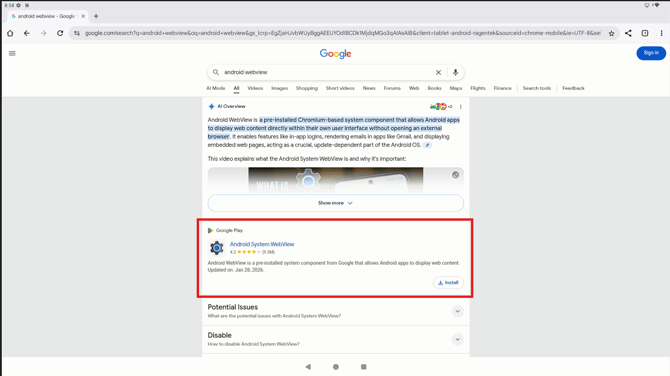
Open Play Store or Chrome browser
-
Search for “Android WebView”
-
In the Google Play section of the results, select Install or Update
-
Restart the affected application after the update completes
If Android WebView has never been updated on a device, it may not appear directly in the Play Store app. Searching via Chrome is often required to trigger the update option.
Once Chrome and WebView are up to date, touch lag issues inside Android applications almost always resolve.
When to Contact Support
A true touchscreen performance issue typically presents as:
-
Entire areas of the screen not responding
-
A consistent dead zone that does not change location
-
The touchscreen not working at all
These symptoms are different from perceived responsiveness differences and should be reported to MicroTouch Support.
Summary
-
Touch responsiveness differences are expected between vendors
- Always confirm outside the application to rule out outdated software modules
-
MicroTouch sensitivity is intentionally tuned for commercial reliability
-
Fast taps highlight tuning differences, not quality
-
Micro-etched AG glass improves durability, readability, and control
-
Touch feel ≠ touch accuracy
MicroTouch products are designed for consistent, stable performance over years of daily use, not just short edge case scenarios.
If you have questions about touch behavior in a specific environment or application, please contact MicroTouch Support.